

What can the Apple Watch do?
What apps and features does the Apple Watch have?
Are there any interesting uses for the Apple Watch?
🎟 Special Discount Now 🎟
Get 10% off with our special code!
✅ Copied!
Many people bought the Apple Watch 7 without even realizing it. However, the NIMASO staff discovered some surprising uses for the Apple Watch 7 beyond just checking notifications, recording heart rate, and recording exercise volume (fitness tracking). So, starting today, we're starting a column in the NIMASO Tips section called "Making the Most of Your Apple Watch." Let's enjoy the Apple Watch 7 together!

Do you find it difficult to press the shutter when taking photos using a selfie stick or stand? You're too far away and can't see the screen clearly. If you have an Apple Watch 7, you can solve all of these problems.
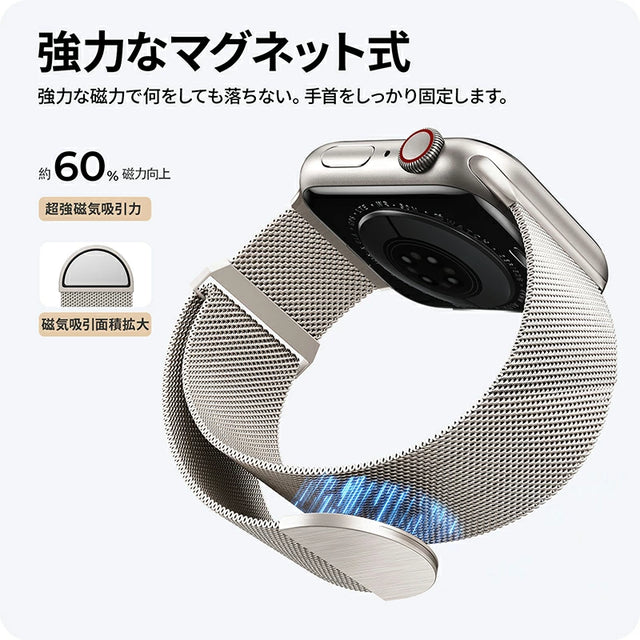
[Strong Magnetic Force & Easy Installation] NIMASO Apple Watch Replacement Magnetic Band Strap
The band has a strong magnetic suction design, so you don't have to worry about it falling off even during intense exercise or active activities. It firmly holds the band in place and prevents it from coming off.
Therefore, in this first installment of "Let's Make the Most of Your Apple Watch," we will introduce a way to take photos with the Apple Watch 7, which does not have a camera lens. Simply put, you can use the Apple Watch 7 to remotely control the iPhone camera, allowing you to take photos with the Apple Watch 7.
The Apple Watch comes with a built-in Camera Remote app that lets you take photos remotely from your iPhone. Here's how to use it:
1. Press the Digital Crown on your Apple Watch.
2. Find and tap the "Camera Remote" app icon on your home screen.
3. Wait for the "Camera Remote" app to connect to your iPhone.
4. Your iPhone will automatically open the camera and you're ready to take a photo.
5. Tap the shutter button at the bottom of your Apple Watch to take a photo.
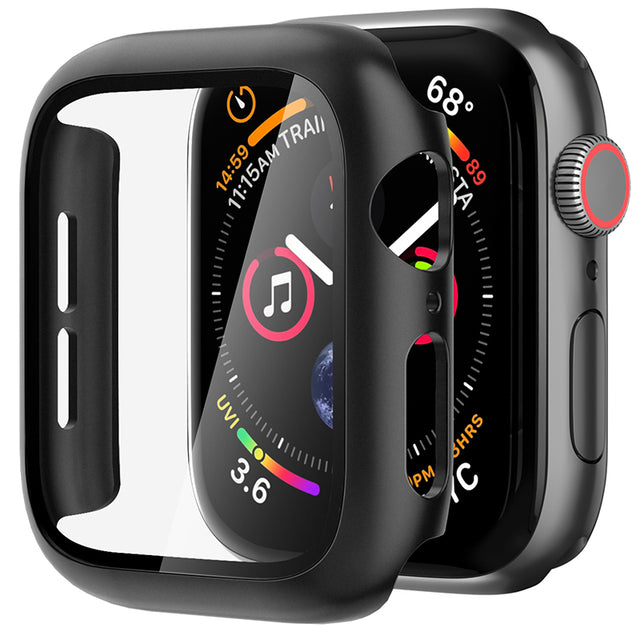
NIMASO Case for Apple Watch Series 11/10/9/8/7/SE/6/5/4/3/2/1/Ultra3/2/1, Waterproof and Dustproof Protective Case Film
It completely covers and protects your Apple Watch from impacts, preventing scratches and damage to the watch's LCD screen while providing full protection on all sides.
Tip: Before taking a photo, tap anywhere on your Apple Watch screen to automatically adjust the exposure and focus to take a better photo based on the lighting.

Once you've taken a photo with your Apple Watch, you can instantly view it in the Camera Remote app. Just remember that the photo will disappear if you leave the Camera Remote app.
You can also use the Apple Watch 7 to control the flash and switch between the front and rear camera lenses. A menu will appear if you press and hold the Apple Watch screen. If you need other camera functions, set them up on your iPhone first.
Other Apple Watch 7 utilization technologies released by NIMASO:
For information on transferring data from Apple Watch 7: https://www.nimaso.co.jp/articles/93
NIMASO introduces the Apple Watch 7: https://www.nimaso.co.jp/articles/72

Finally, I would like to introduce the band for Apple Watch 7 made by NIMASO.
NIMASO's Apple Watch 7 bands are crafted from genuine leather. Each and every one of our genuine leather bands is carefully crafted to exude a luxurious feel. NIMASO's proprietary technology also makes them resistant to fading due to friction. NIMASO offers four colors of bands to suit a variety of occasions.
NIMASO also offers a slimmer T-shaped bandage specifically for women. It is made of soft material to avoid damaging the skin. It feels very nice to the touch. The bandage's color and size are also suitable for women.


